
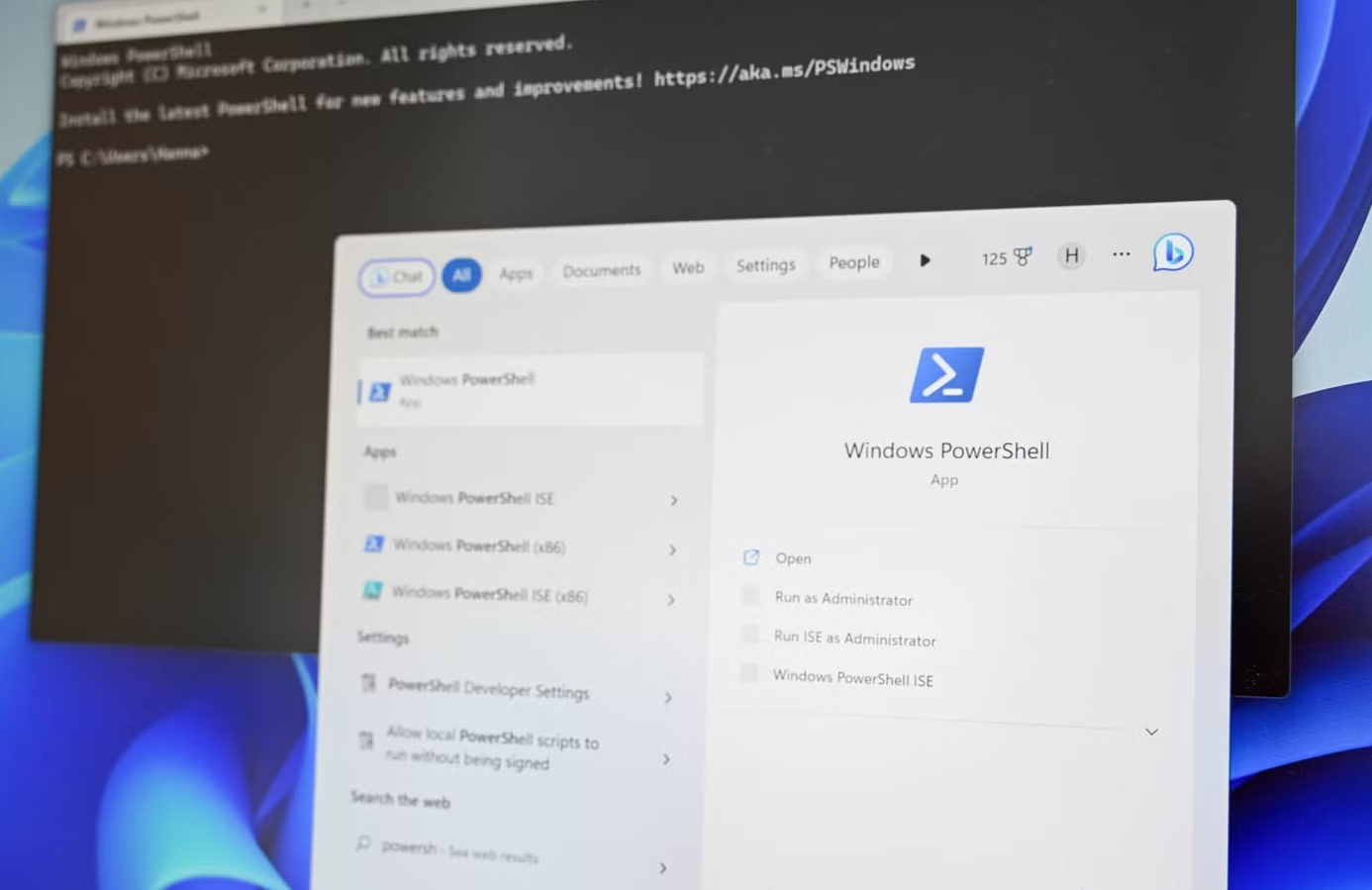
I usually try and avoid the command line as much as possible. PowerShell, feels like one of those things you only touch if something has gone very wrong. It looks outdated, not exactly welcoming, and at first glance feels like you need to memorize a bunch of cryptic commands just to get anything done. But after spending some time with it, I have realized that it’s not nearly as complicated as it seems. Once you get past the interface, PowerShell is just a faster, more direct way to interact with Windows, and in some cases, it gives you access to things the normal interface simply doesn’t.
Find duplicate files Windows can’t detect
Use PowerShell to compare files and uncover exact matches
PowerShell fills that gap by comparing files using hashes, which are essentially unique fingerprints based on a file’s contents. If two files have the same hash, they’re identical, even if the names are different. To try it, open the folder you want to scan in File Explorer, click the address bar, type powershell.exe, and press Enter. That launches PowerShell directly in that location, so you don’t have to deal with file paths.
From there, run a single command that scans every file, generates hashes, and groups matches:
Get-ChildItem -Recurse | Get-FileHash | Group-Object Hash | Where-Object {$_.Count -gt 1} | ForEach-Object {$_.Group | Select-Object Path}
This returns sets of duplicate files in seconds. The results will show matching files listed back-to-back, with each pair or group representing identical files stored in different locations. It’s not flashy, but it’s far more accurate than anything built into Windows, and once you use it, it’s hard to go back to doing this manually.
Remove built-in apps Windows won’t let you uninstall
Windows gives you a way to uninstall apps, but only the ones it wants you to remove. Plenty of built-in apps either don’t show up in Settings at all or can’t be fully removed, especially across all users. That becomes frustrating if you’re trying to clean up a system or just get rid of things you’ll never use.
PowerShell gives you full visibility into every installed app package, including the ones Windows hides. To use it properly here, you’ll need to open PowerShell as an administrator. The easiest way is to press Start, type PowerShell, then right-click it and choose Run as administrator. Without admin access, some apps won’t show up or can’t be removed.
Once it opens, run:
Get-AppxPackage -AllUsers
This will show everything installed on the system, not just what appears in Settings. Once you find the app you want to remove, copy its PackageFullName and run:
Remove-AppxPackage -Package
It’s more manual than clicking Uninstall, but it gives you control the interface simply doesn’t, especially when dealing with apps the interface won’t touch.
Not every app can be removed, as some core system apps are marked as non-removable.
See startup programs Windows doesn’t show you
Use PowerShell to reveal everything launching when your PC starts
Windows gives you a startup tab in Task Manager, but it only shows part of what actually runs when your system boots. Plenty of entries live outside that list, including scheduled tasks, registry-based launches, and other background processes that never show up in the usual interface. That makes it harder to understand what’s really slowing down your system or running behind the scenes. It’s another example of Windows giving you a simplified view instead of the full picture.
PowerShell gives you a complete view. Run this command:
Get-CimInstance Win32_StartupCommand
You’ll get a much more complete list of what’s configured to launch at startup, along with details like the command path and where it’s being triggered from. Once you have that list, you can scan for anything unfamiliar, track down its file location, and decide whether it should be there. If something looks suspicious or unnecessary, you can disable or remove it through Task Manager, the Registry, or the app itself. It’s not as polished as a GUI, but it gives you the full picture, which makes it much easier to understand and control what’s actually starting with your system.
Full system report in seconds. Run it once and see everything Windows knows about your PC
If you only learn one PowerShell command, make it this one:
Get-ComputerInfoThat’s it. No installs, no extra tools, no digging through menus. Open PowerShell, run it, and Windows pulls data from all over the OS, details you’d normally have to piece together from Settings, Task Manager, Device Manager, and System Information, and lays it out in a single, scrollable output. The first time you run it, it almost feels like overkill, but that’s exactly the point.
What makes this command so useful isn’t just how much it shows, it’s how quickly you can get answers. When I’m trying to diagnose a problem, I don’t want to click through five different screens just to confirm a BIOS version or double-check a Windows build number. It’s basically the closest thing Windows has to a built-in “tell me everything about this PC” button, it just happens to live in PowerShell instead of a polished UI.
It pulls system details Windows keeps buried.
The first time you run Get-ComputerInfo, it almost feels like information overload. You’re not just getting the basics, you’re getting everything Windows knows about that machine in one place. That includes the obvious stuff like your CPU, RAM, and Windows version, but it goes a lot deeper than what you’ll see in Settings. You’ll find your BIOS version and firmware details, the exact date Windows was installed, your system model and manufacturer, and even things like Secure Boot status and virtualization support. These are all things Windows technically exposes, but never in one clean, unified view.
The downside is obvious the second you scroll. It’s a wall of text, and unless you know what you’re looking for, it can be overwhelming. That’s where a little filtering goes a long way. Instead of dumping everything, you can pull just the fields you care about. For example, if you only want a quick snapshot of key details, you can use:
Get-ComputerInfo | Select-Object CsModel, WindowsVersion, BiosVersion, CsTotalPhysicalMemoryYou can also search through the output for specific terms, which is a lot faster than manually scrolling:
Get-ComputerInfo | findstr /i "bios"Note: The alias for Get-ComputerInfo is gin. So, gin is all you have to type."findstr" isn't native to PowerShell. While it works, it's unnecessary. Simply pipe the command to the Select statement and a search term with wildcards (asterisks). E.g., ++ To get all the attributes that include a search term, run: gin | Select *SEARCHTERM* . ++ To run the output to your Windows clipboard for pasting elsewhere, run: gin | clip . ++ To run the output to a given file at a given path, run: gin | Out-File "FULLPATH\NAME.txt"
The biggest downside is how raw the output is. Get-ComputerInfo doesn’t try to guide you or highlight what matters, it just dumps everything at once. There’s no structure beyond a long list of properties, so if you don’t already know what you’re looking for, it can feel like noise instead of insight.
It’s also not very user-friendly. There’s no interface, no sorting, no way to click into anything. You either scroll, filter, or search manually. Some people will always prefer tools like msinfo32 for that reason alone, even if they’re less flexible overall.
One command worth remembering when Windows won’t give straight answers
If you spend any time troubleshooting Windows, this is one of those commands worth committing to memory. Get-ComputerInfo doesn’t replace every tool, but it gives you a fast, complete snapshot of what’s really going on without jumping between menus or second-guessing where to look. It’s already built into Windows, it takes seconds to run, and once you start filtering it down to what you actually need, it becomes one of the most practical ways to get straight answers about your PC.
PowerShell isn’t as intimidating as it looks
PowerShell might look outdated and a little intimidating at first, but once you get past that, it opens up parts of Windows that you simply can’t access any other way. You don’t need to learn scripting or memorize dozens of commands to get real value out of it either. A few targeted commands can solve problems Windows still doesn’t address, give you better visibility into what your system is doing, and make everyday tasks a lot easier. It’s not about replacing the interface, it’s about filling in the gaps where Windows falls short.
The biggest drawback is how raw the output feels, Powerful, but not exactly user-friendly
